
Table options
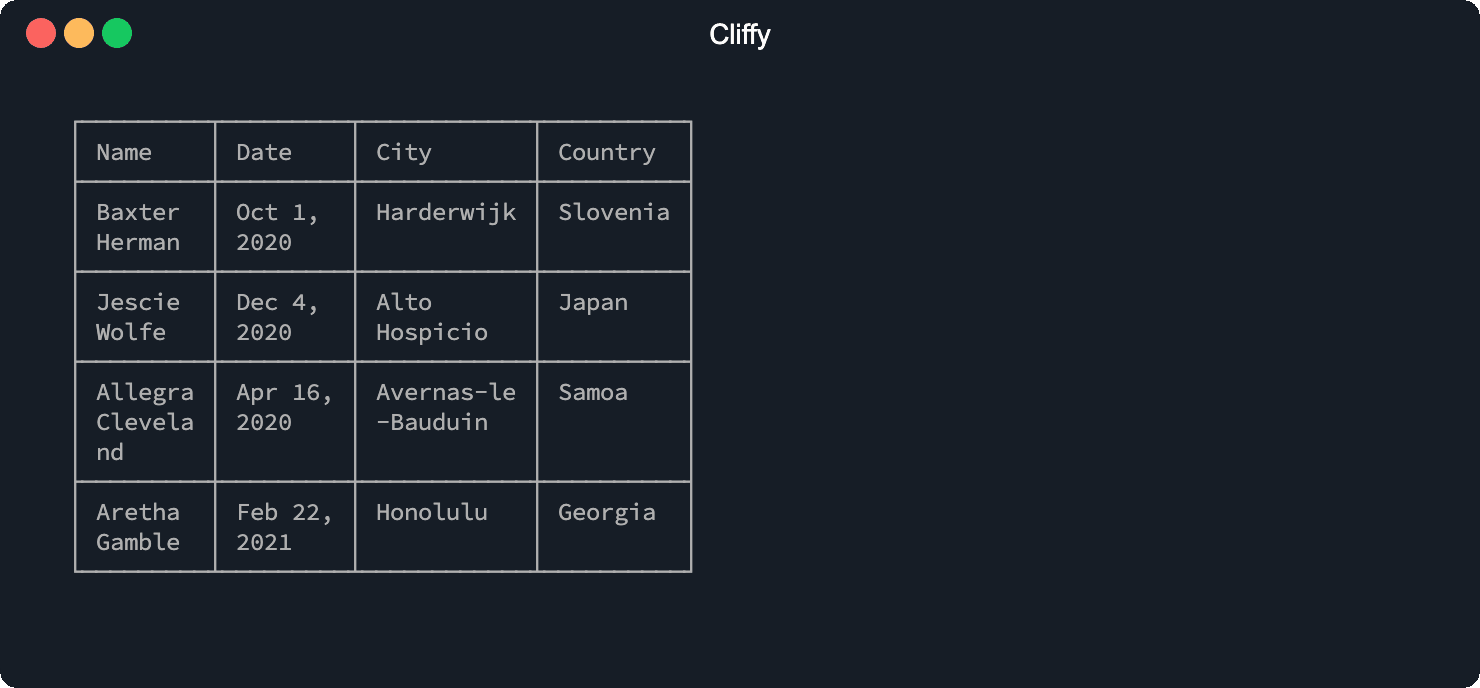
To customize the table, the table class provides a few chainable option methods. To see a list of all available options go to the Table API section.
import { Table } from "@cliffy/table";

new Table()
  .header(["Name", "Date", "City", "Country"])
  .body([
    ["Baxter Herman", "Oct 1, 2020", "Harderwijk", "Slovenia"],
    ["Jescie Wolfe", "Dec 4, 2020", "Alto Hospicio", "Japan"],
    ["Allegra Cleveland", "Apr 16, 2020", "Avernas-le-Bauduin", "Samoa"],
    ["Aretha Gamble", "Feb 22, 2021", "Honolulu", "Georgia"],
  ])
  .maxColWidth(10)
  .padding(1)
  .indent(2)
  .border()
  .render();
$ deno run https://cliffy.io/examples/v1.2.1/table/table_options.ts
Header and Body
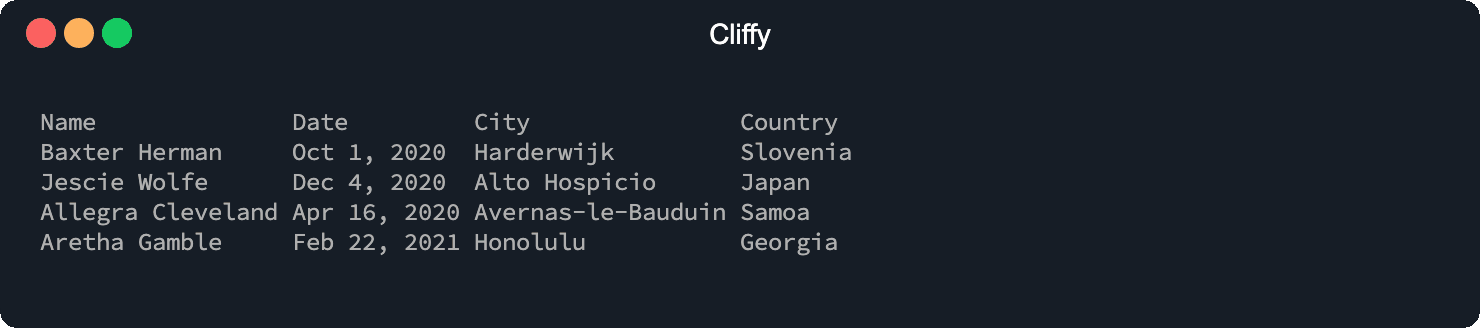
To define a table header you can use the .header() method. The header is not
affected by any Array method like .sort() because it is stored as a separate
property and not in the array stack. The .body() method adds an array of rows
to the table and removes all existing rows.
The first argument of the .header() method can be an Array of string
and/or Cell.
The first argument of the .body() can be an Array of rows and a row can be
an Array of string and Cell. You can read more about rows and cells
here.
import { Table } from "@cliffy/table";

new Table()
  .header(["Name", "Date", "City", "Country"])
  .body([
    ["Baxter Herman", "Oct 1, 2020", "Harderwijk", "Slovenia"],
    ["Jescie Wolfe", "Dec 4, 2020", "Alto Hospicio", "Japan"],
    ["Allegra Cleveland", "Apr 16, 2020", "Avernas-le-Bauduin", "Samoa"],
    ["Aretha Gamble", "Feb 22, 2021", "Honolulu", "Georgia"],
  ])
  .render();
$ deno run https://cliffy.io/examples/v1.2.1/table/header_and_body.ts
Columns
The .columns(columns) method can be used to set column options of multiple
columns. All available column options can be found here.
import { Column, Table } from "@cliffy/table";

new Table()
  .body([
    ["Baxter Herman", "Oct 1, 2020", "Harderwijk", "Slovenia"],
    ["Jescie Wolfe", "Dec 4, 2020", "Alto Hospicio", "Japan"],
    ["Allegra Cleveland", "Apr 16, 2020", "Avernas-le-Bauduin", "Samoa"],
    ["Aretha Gamble", "Feb 22, 2021", "Honolulu", "Georgia"],
  ])
  .columns([
    { border: true },
    new Column().align("right"),
  ])
  .render();
Column
With the .column(index, options) method you can set options for a single
column at a specific index. All available column options can be found
here.
import { Column, Table } from "@cliffy/table";

new Table()
  .body([
    ["Baxter Herman", "Oct 1, 2020", "Harderwijk", "Slovenia"],
    ["Jescie Wolfe", "Dec 4, 2020", "Alto Hospicio", "Japan"],
    ["Allegra Cleveland", "Apr 16, 2020", "Avernas-le-Bauduin", "Samoa"],
    ["Aretha Gamble", "Feb 22, 2021", "Honolulu", "Georgia"],
  ])
  .column(0, {
    border: true,
  })
  .column(1, new Column().align("right"))
  .render();
Render
The .render() method outputs the table to stdout. If you need the output as
string you can use the .toString() method to return the table as string.
Column width
You can set the min/max width of columns with the .minColWidth() and
.maxColWidth() methods.
Max width
The .maxWidth(width) method sets the maximum total width of the table in
columns. This is required for flexGrow, flexShrink, and flex to work.
Without a finite max width the layout has no target and flex is a no-op.
import { Table } from "@cliffy/table";

new Table()
  .body([["foo", "bar"]])
  .maxWidth(80)
  .flexShrink([0, 1])
  .render();
Responsive flex
The .flexGrow(), .flexShrink(), and .flex() table-level methods set a
default flex weight for all columns. They accept either a single number (applied
to every column) or an array of per-column weights.
iNOTE
A finite
.maxWidth()must be set on the table for flex to have any effect.
import { Table } from "@cliffy/table";

// Grow the second column to fill available space, keep others rigid.
new Table()
  .body([["Name", "Description", "Version"]])
  .maxWidth(100)
  .flexGrow([0, 1, 0])
  .render();

// Shrink only the second column on overflow.
new Table()
  .body([["Name", "Description", "Version"]])
  .maxWidth(60)
  .flexShrink([0, 1, 0])
  .render();

// Shorthand: grow and shrink together.
new Table()
  .body([["Name", "Description", "Version"]])
  .maxWidth(80)
  .flex([0, 1, 0])
  .render();
For per-column control use the Column class — see
Flex grow, Flex shrink,
and Flex (shorthand) in the column docs.
Cell padding
The .padding() method adds padding to all cells.
Border
You can enable border by using the .border() method.
Border style
With the .chars() method you can change the border style.
Here is an example of the default border characters:
{
  "top": "─",
  "topMid": "┬",
  "topLeft": "┌",
  "topRight": "┐",
  "bottom": "─",
  "bottomMid": "┴",
  "bottomLeft": "└",
  "bottomRight": "┘",
  "left": "│",
  "leftMid": "├",
  "mid": "─",
  "midMid": "┼",
  "right": "│",
  "rightMid": "┤",
  "middle": "│"
}
Align content
The content can be aligned with the .align() method. The first argument is the
direction. Possible values are:
"left""right""center"
Table indent
With the .indent() method you can add indentation to the table.
Clone
The .clone() method clones the entire table.