
Auto suggestions
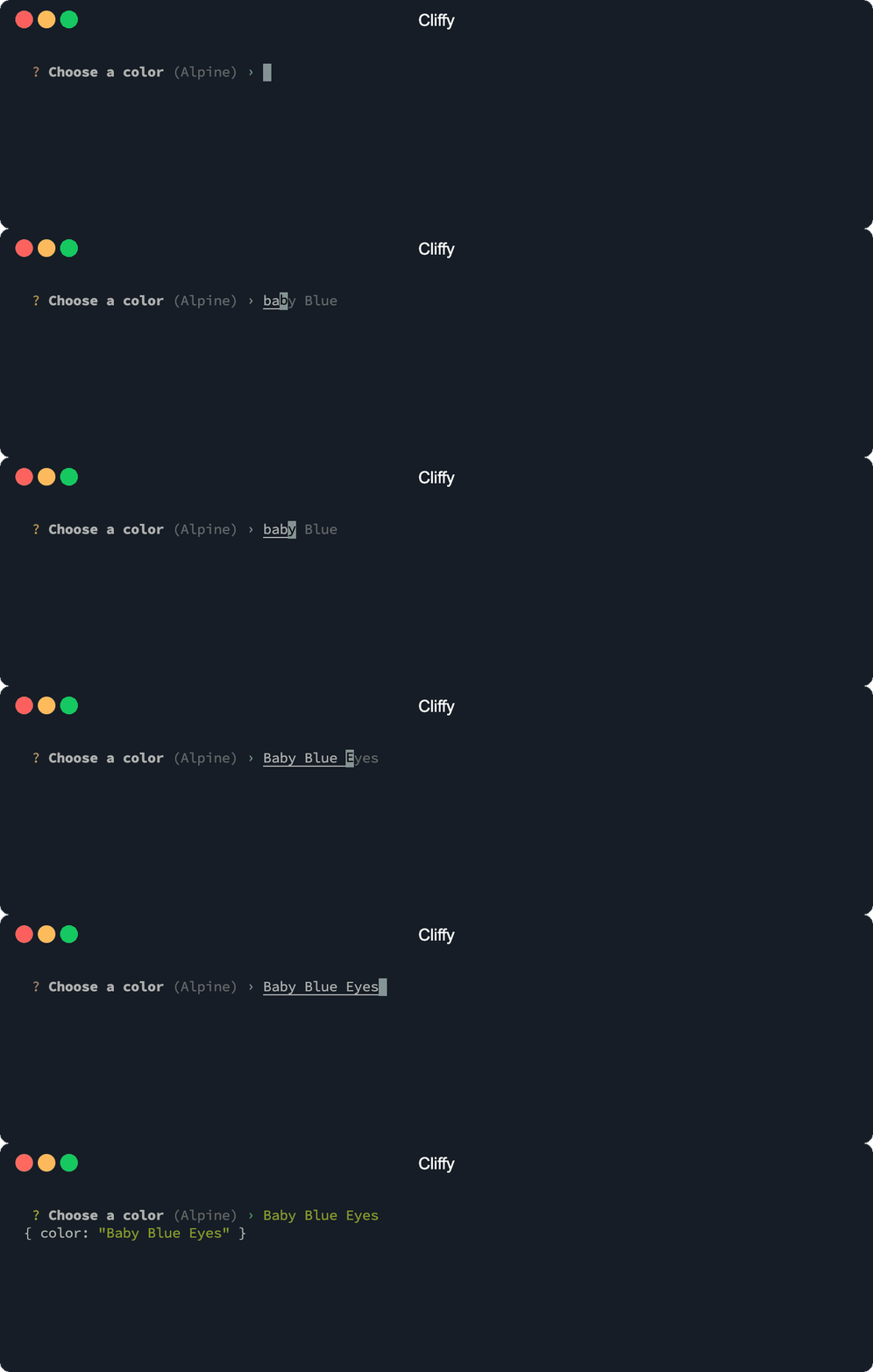
You can provide suggestions to the input,
number and list prompt to enable
tab-completions with the suggestions and/or
id option. If an id is provided, the values will be saved
to the local storage using the id as local storage key. With suggestions you
can provide some default suggestions. Both options can be defined at the same
time.
deno install you/cli.ts --location https://example.com
# or
deno run you/cli.ts --location https://example.com
Options
Suggestions
The suggestions option specifies a list of default suggestions.
import { Input } from "@cliffy/prompt/input";

const color = await Input.prompt({
  message: "Choose a color",
  suggestions: [
    "Abbey",
    "Absolute Zero",
    "Acadia",
    "Acapulco",
    "Acid Green",
    "Aero",
    "Aero Blue",
    "Affair",
    "African Violet",
    "Air Force Blue",
  ],
});

console.log({ color });
$ deno run https://cliffy.io/examples/v1.2.1/prompt/suggestions.ts
Local storage id
If the id option is provided, values are stored in the local storage using the
id as local storage key. The stored values are used as suggestions the next time
the prompt is used.
iNOTE
The
idoption requires deno >=1.10and the--locationflag. Since deno1.16.0the--locationflag is optional.
Path completions
To enable path completions for relative and absolute files, set the files
option to true. Path completions is only available for Input and List
prompts.
Suggestions list
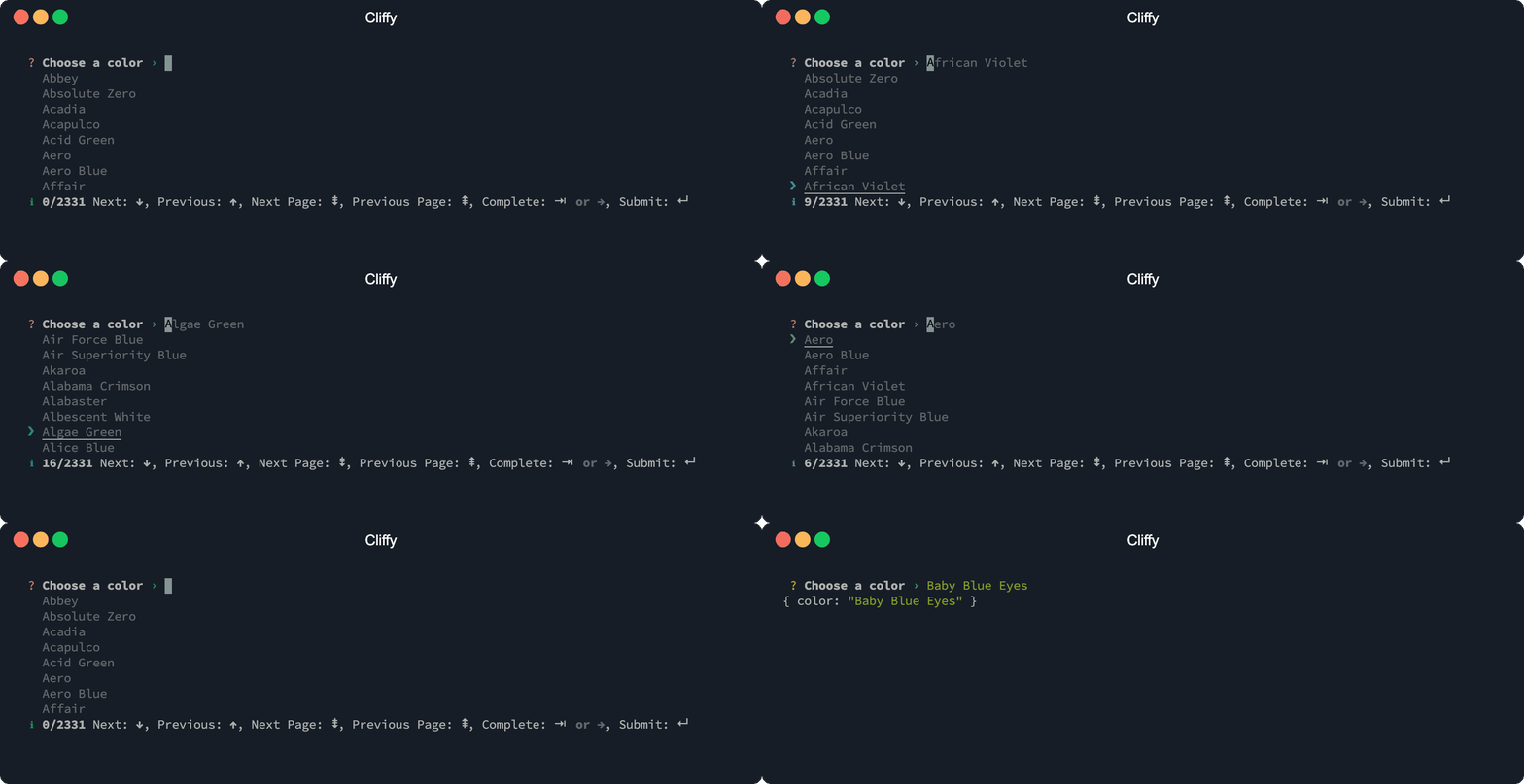
With the list option you can display a list of suggestions. Matched
suggestions are highlighted in the list. Press tab to complete the highlighted
suggestion, or enter to accept and submit it (see
Complete on submit).
You can also display the info bar with the info option to show the number of
available suggestions and usage information.
import { Input } from "@cliffy/prompt/input";

const color = await Input.prompt({
  message: "Choose a color",
  list: true,
  info: true,
  suggestions: [
    "Abbey",
    "Absolute Zero",
    "Acadia",
    "Acapulco",
    "Acid Green",
    "Aero",
    "Aero Blue",
    "Affair",
    "African Violet",
    "Air Force Blue",
  ],
});

console.log({ color });
$ deno run https://cliffy.io/examples/v1.2.1/prompt/suggestions_list.ts
Max suggestions
With the maxRows option you specify the number of suggestions displayed per
page. Defaults to 10.
Search mode
The searchMode option controls the matching strategy used to filter, rank and
highlight suggestions. Defaults to "all".
"substring": classic contiguous substring match."fuzzy": match the typed characters in order, allowing gaps (e.g.strubumatchesstructure-builder)."typo": tolerate misspellings via edit distance (e.g.stroberrymatchesstrawberry), without fuzzy subsequence matching."all": combines"substring","fuzzy"and"typo".
Substring matches always rank above fuzzy matches, which always rank above typo-tolerant matches, regardless of their inner scores.
import { Input } from "@cliffy/prompt/input";

const color = await Input.prompt({
  message: "Choose a color",
  list: true,
  searchMode: "substring",
  suggestions: ["Abbey", "Acadia", "Aero"],
});

console.log({ color });
Complete on submit
The completeOnSubmit option controls whether the highlighted suggestion is
accepted when the prompt is submitted. When enabled and a suggestion is
highlighted, pressing enter completes the highlighted suggestion and submits
it instead of the raw input value. If no suggestion matches the current input,
the typed value is submitted. A custom complete handler and
path completions are respected.
The default depends on the list option:
- With
list: true, suggestions are shown as a highlighted list andcompleteOnSubmitdefaults totrue, soenteraccepts the highlighted entry (menu-like behavior). - For inline suggestions (
listdisabled), it defaults tofalse, soentersubmits the typed value, like fish/zsh autosuggestions.
Set the option explicitly to override the per-mode default:
import { Input } from "@cliffy/prompt/input";

const color = await Input.prompt({
  message: "Choose a color",
  list: true,
  suggestions: ["Abbey", "Acadia", "Aero"],
  completeOnSubmit: false,
});

console.log({ color });
To submit a value that is a prefix of a suggestion (for example Ab while
Abbey is highlighted), press escape to dismiss the highlighted suggestion,
then enter to submit the typed value. Typing or navigating the list
re-activates suggestions. The dismiss key can be changed with the deselect
keymap (keys: { deselect: ["escape"] }).