Auto generated help
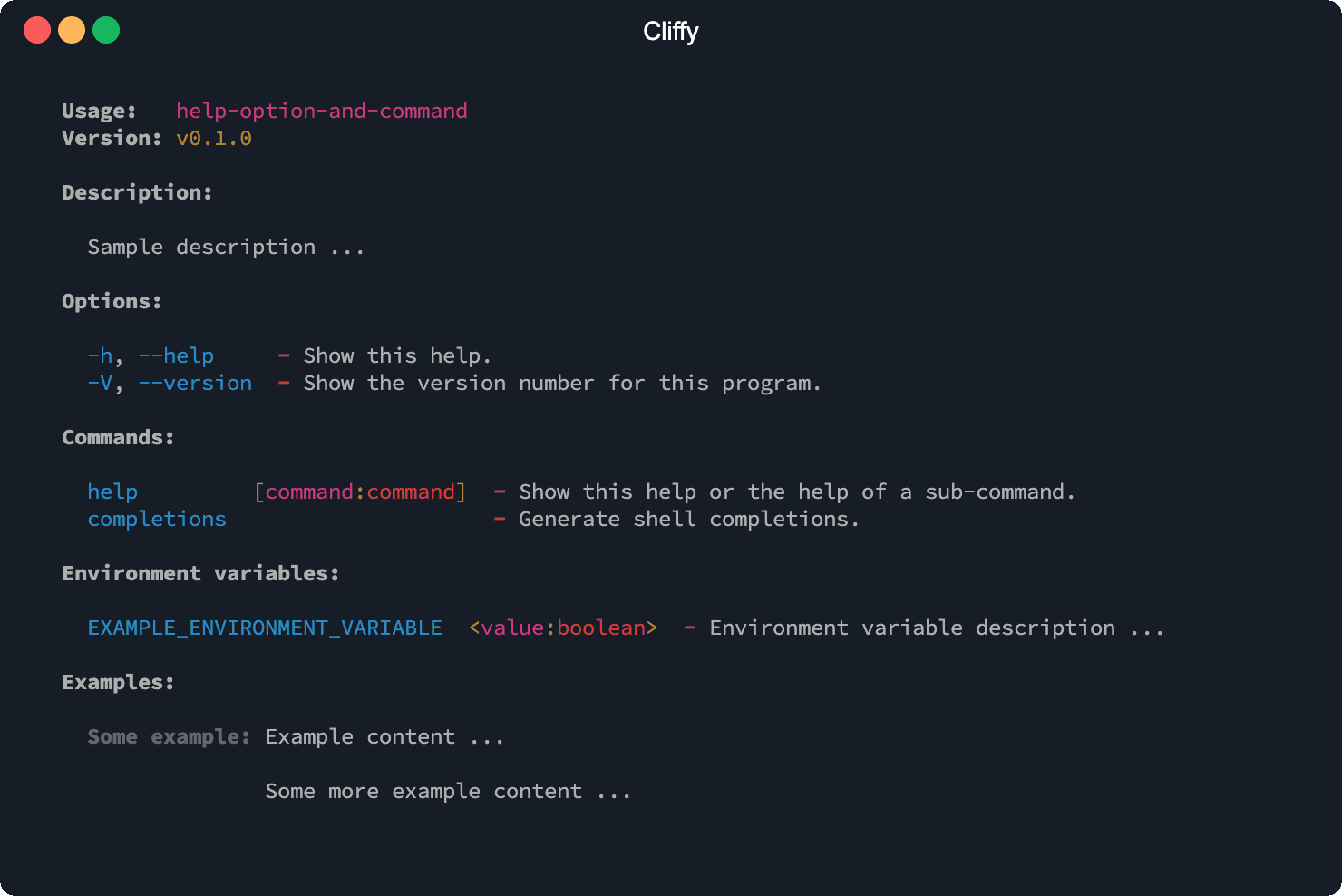
The help information is auto-generated based on the information you have defined on your commands. The name, version, description, meta information, options, commands, environment variables and examples are displayed in the help.
To display the help you can invoke the help option (-h or
--help) or the help command (help) on
the main or on one of the sub commands. The help command needs to be
registered manually.
To retrieve the help text programmatically you can use the .showHelp() and .getHelp() methods.
import { Command } from "@cliffy/command";

await new Command()
  .name("help-option-and-command")
  .version("0.1.0")
  .description("Sample description ...")
  .env(
    "EXAMPLE_ENVIRONMENT_VARIABLE=<value:boolean>",
    "Environment variable description ...",
  )
  .example(
    "Some example",
    "Example content ...\n\nSome more example content ...",
  )
  .parse();
$ deno run https://cliffy.io/examples/v1.3.1/command/help.ts --help
Print help
You can use the .showHelp() method to output the help to stdout manually.
Commands that have sub-commands but no action handler automatically print the
help when called without arguments. This behaviour can be disabled with
.help({ auto: false }). See
Auto help for container commands.
For example, to show the help programmatically inside an action handler, you can
call .showHelp() directly:
import { Command } from "@cliffy/command";

const cmd = new Command()
  .name("git")
  .action(() => cmd.showHelp())
  .command("pull", "Pull changes from remote repository.")
  .action(() => console.log("Pulling..."))
  .command("fetch", "Fetch changes from remote repository.")
  .action(() => console.log("Fetching..."));

await cmd.parse();
You can also use this to refer to the current command instance inside the
action handler:
import { Command } from "@cliffy/command";

await new Command()
  .name("git")
  .action(function () {
    this.showHelp();
  })
  .command("pull", "Pull changes from remote repository.")
  .action(() => console.log("Pulling..."))
  .command("fetch", "Fetch changes from remote repository.")
  .action(() => console.log("Fetching..."))
  .parse();
Get help
The .getHelp() method returns the auto generated help as string.
Additional info
You can add some additional information to the help text with the
.meta(name, value) method.
import { Command } from "@cliffy/command";

await new Command()
  .name("example")
  .version("1.0.0")
  .description("Example command.")
  .meta("deno", Deno.version.deno)
  .meta("v8", Deno.version.v8)
  .meta("typescript", Deno.version.typescript)
  .parse();
The additional information is displayed below the command version in the auto generated help.
$ deno run example.ts --help
Usage:   example
Version: 0.1.0

deno: 1.16.1
v8: 9.7.106.2
typescript: 4.4.2

Description:

  Example command.
Customize help
The .help() method can be used to customize the auto generated help. The help
output is fully responsive and adapts to the terminal width by default.
import { Command } from "@cliffy/command";

await new Command()
  .help({
    // Show argument types.
    types: true, // default: false
    // Show hints.
    hints: true, // default: true
    // Enable, disable or auto-detect colors. Defaults to the global color
    // state of `@std/fmt/colors`. See the colors section below.
    colors: false,
    // Set the target width of the help output in columns.
    // Defaults to the terminal width (or 150 if not a TTY).
    width: 120,
    // Set the maximum width for the help output.
    maxWidth: 160,
  })
  .option("-f, --foo [val:number]", "Some description.", {
    required: true,
    default: 2,
  })
  .parse();
Responsive help
The help output is responsive by default: it reads the current terminal width
and wraps text accordingly. The width option overrides the detected terminal
width, and maxWidth caps it.
Colors
The colors option controls the colored output of the help.
trueenables colors.falsedisables colors."auto"enables colors only when they are globally enabled and standard output is a terminal, so the output stays plain when it is piped into a file or another program.
Without the option, the global color state of @std/fmt/colors is used, which
can be changed with setColorEnabled().
import { Command } from "@cliffy/command";

await new Command()
  .help({ colors: "auto" })
  .option("-f, --foo", "Some description.")
  .parse();
iNOTE
Colors are always disabled when the
NO_COLORenvironment variable is set to a non-empty value, regardless of this option. On Node and Bun, theNODE_DISABLE_COLORSenvironment variable has the same effect."auto"becomes the default in 2.0.
Cliffy reads those variables by default. Any non-empty value disables colors,
NO_COLOR=false included. To colorize your own output the same way the help
does, read getColorEnabled() from @std/fmt/colors rather than reading the
variable yourself.
Auto help for container commands
By default, when a command has sub-commands but no action handler, calling it
without any arguments automatically prints the help text. This is the auto
behaviour, which is enabled by default. You can disable it by passing
{ auto: false } to .help().
import { Command } from "@cliffy/command";

await new Command()
  .name("git")
  // Disable automatic help for container commands (help must be shown manually).
  .help({ auto: false })
  .command("pull", "Pull changes from remote repository.")
  .action(() => console.log("Pulling..."))
  .command("fetch", "Fetch changes from remote repository.")
  .action(() => console.log("Fetching..."))
  .parse();
Override help
The .help() method can be also used to override the help output. This
overrides the output of the .getHelp() and .showHelp() methods which are
used by the help option and help command. The help handler will also be used for
all sub commands, but can be overridden in each sub command separately.
import { Command } from "@cliffy/command";

await new Command()
  .help("My custom help")
  // Can be also a function.
  .help(() => "My custom help")
  .parse();
Help option
The -h and --help option flag prints the auto generated help to stdout.
The short flag -h prints only the first line of each option and command
description. With the long flag (--help) the full description is printed for
each option and command.
Optionally you can also register the pre-defined help command to display the help.
Customize help option
The help option is completely customizable with the .helpOption() method. It
has the same arguments as the normal .option() method. With the first argument
you specify the flags followed by the description. The third argument can be an
action handler or an options object. The second and third arguments are
optional.
import { Command } from "@cliffy/command";

await new Command()
  .helpOption("-i, --info", "Print help info.", function (this: Command) {
    console.log("some help info ...", this.getHelp());
  })
  .parse();
You can also override the default options of the help option. The options are
the same as for the .option() method.
import { Command } from "@cliffy/command";

await new Command()
  .helpOption(" -x, --xhelp", "Print help info.", { global: true })
  .parse();
To disable the help option you can pass false to the .helpOption() method.
import { Command } from "@cliffy/command";

await new Command()
  .helpOption(false)
  .parse();
Version option
The --version and -V option flag prints the version number defined with the
version() method. The version number will also be displayed in the auto
generated help. If the long --version option is used, the long format will be
printed including command name and all meta data defined with the
.meta() method.
import { Command } from "@cliffy/command";

await new Command()
  .version("0.1.0")
  .parse();
$ deno run https://cliffy.io/examples/v1.3.1/command/version_options.ts -V
0.0.1

$ deno run https://cliffy.io/examples/v1.3.1/command/version_options.ts --version
0.0.1
Customize version option
The version option is completely customizable with the .versionOption()
method. It has the same arguments as the normal .option() method. With the
first argument you specify the flags followed by the description. The third
argument can be an action handler or an options object. The second and third
arguments are optional.
import { Command } from "@cliffy/command";

await new Command()
  .version("0.1.0")
  .versionOption(
    " -x, --xversion",
    "Print version info.",
    function (this: Command) {
      console.log("Version: %s", this.getVersion());
    },
  )
  .parse();
You can also override the default options of the version option. The options are
the same as for the .option() method.
import { Command } from "@cliffy/command";

await new Command()
  .version("0.1.0")
  .versionOption(" -x, --xversion", "Print version info.", { global: true })
  .parse();
The version option can be also disabled.
import { Command } from "@cliffy/command";

await new Command()
  .versionOption(false)
  .parse();
Add examples
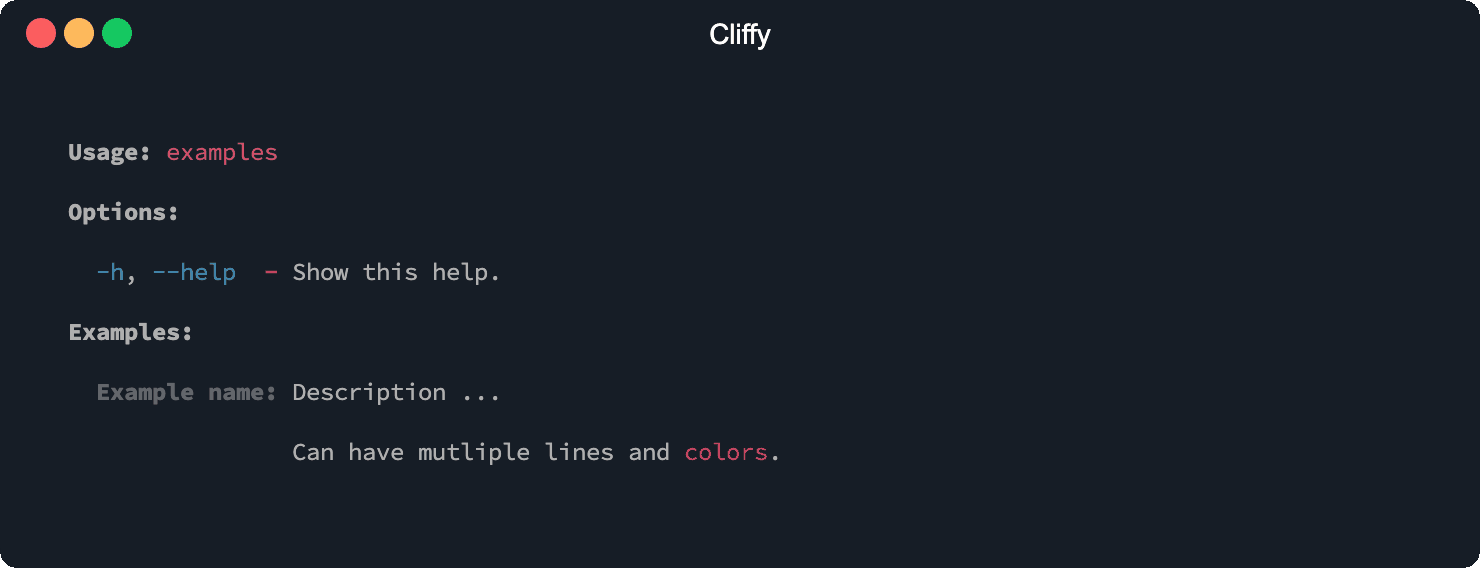
You can add some examples for your command which will be displayed in the auto generated help.
import { red } from "@std/fmt/colors";
import { Command } from "@cliffy/command";

await new Command()
  .name("examples")
  .example(
    "example name",
    `Description ...\n\nCan have multiple lines and ${red("colors")}.`,
  )
  .parse();
$ deno run https://cliffy.io/examples/v1.3.1/command/examples.ts help